MDR documentation
Location: Account → Settings → MDR
Manager can generate Medical Device Regulation (MDR) documentation for your productions. When MDR is enabled, LutraCAD adds MDR forms to each production, filled with your company details and the practitioner, material, and top cover you select. Everything is configured on the MDR tab in Settings.
Turning on MDR documentation
- Open Settings and go to the MDR tab.
- Tick MDR enabled.
- Fill in your Company information, then add Practitioners, Materials, and Cover materials.
- Click Save.
The rest of the tab is only visible once MDR enabled is ticked.
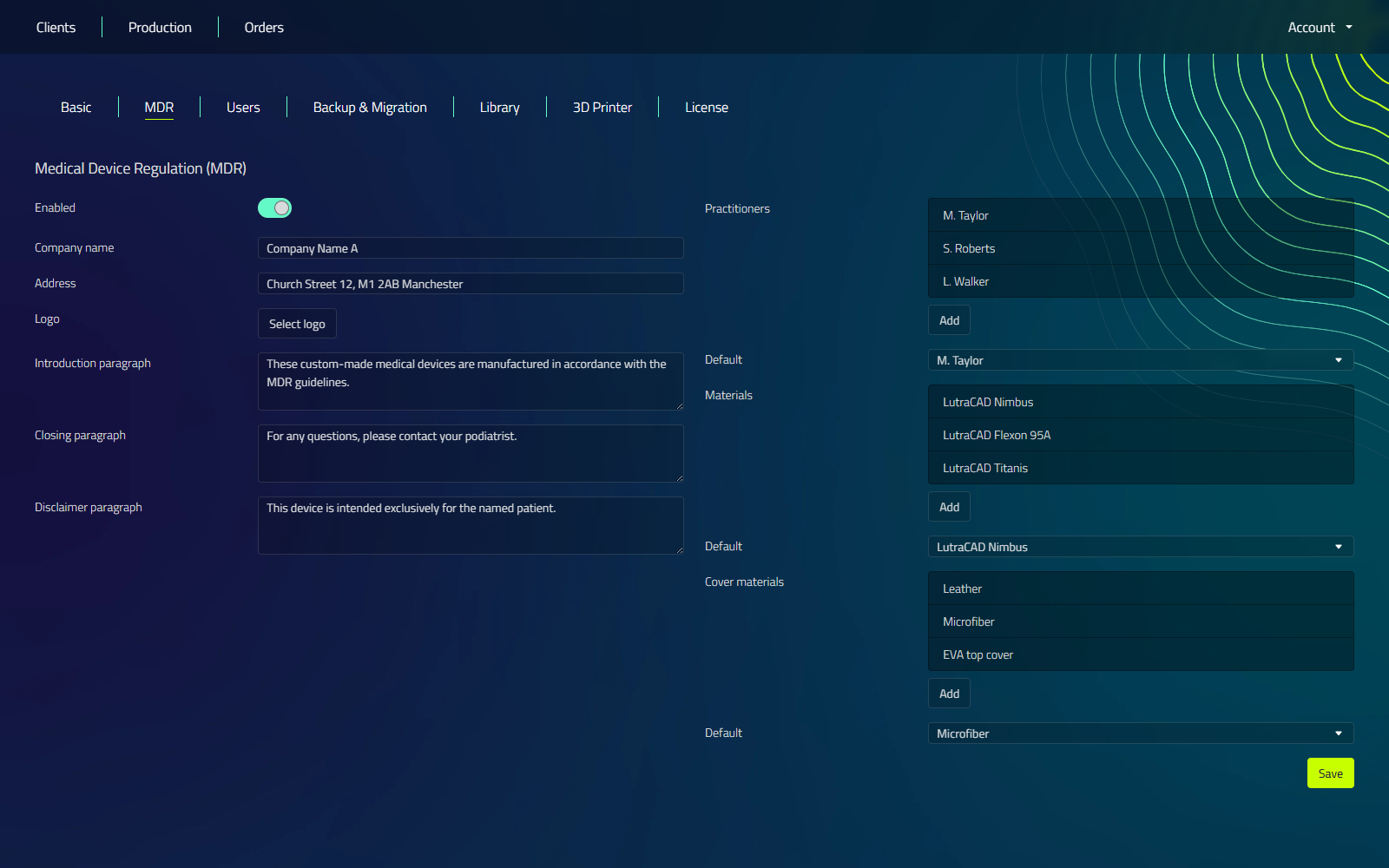
Company information
These details print on every MDR form.
| Field | What to enter |
|---|---|
| Company name | Your company name, printed on all MDR forms. |
| Address | Your company address as it should appear on forms. |
| Logo | Click Select logo to upload an image. Accepted formats are JPG, JPEG, BMP, PNG, and SVG. |
| Introduction paragraph | Text shown at the top of MDR documents. |
| Closing paragraph | Text shown at the bottom of MDR documents. |
| Disclaimer paragraph | Disclaimer text shown on the document. |
The logo file may be no larger than about 65 KB. Larger files are rejected. The three paragraph fields each hold up to 510 characters.
Practitioners
Manage the list of practitioners that can be selected on an MDR form.
| Action | How |
|---|---|
| Add a practitioner | Click Add, then enter the name in the dialog. |
| Remove a practitioner | Click the item in the list. |
| Set the default | Choose a name from the Default dropdown. |
Materials
Manage the list of insole materials.
| Action | How |
|---|---|
| Add a material | Click Add, then enter the material name. |
| Remove a material | Click the item in the list. |
| Set the default | Choose a material from the Default dropdown. |
Cover materials
Manage the list of top cover materials.
| Action | How |
|---|---|
| Add a top cover | Click Add, then enter the top cover material. |
| Remove a top cover | Click the item in the list. |
| Set the default | Choose a top cover from the Default dropdown. |
Saving
Click Save to apply all MDR settings.
Where MDR forms appear
Once MDR is enabled and configured, MDR forms are generated automatically for your productions. You will find them with the production records in the Archive tab under Production: the MDR forms count on a production opens an overlay showing the linked MDR documents.