White-label
Location: User menu → Admin
The Admin area, reached from the user menu, is for the administrator of a white-label organisation: the customer who runs Print Farm under their own name, logo and domain. It manages that organisation's branding, mail identity, users and subscription plans. Regular farm members never see it.
It has three tabs: Users, Branding and Email.
If Print Farm runs under the default name and branding for you, this area does not apply. It is only relevant to organisations with their own branded, white-label setup.
Users
The Users tab lists your organisation's users with Name, Email, Status, Admin, Farms and Plan. Status is Confirmed or Pending; the Plan column shows the user's subscription plan (or Free) with an Edit plan pencil. Each row except your own has Login as to sign in as that user.
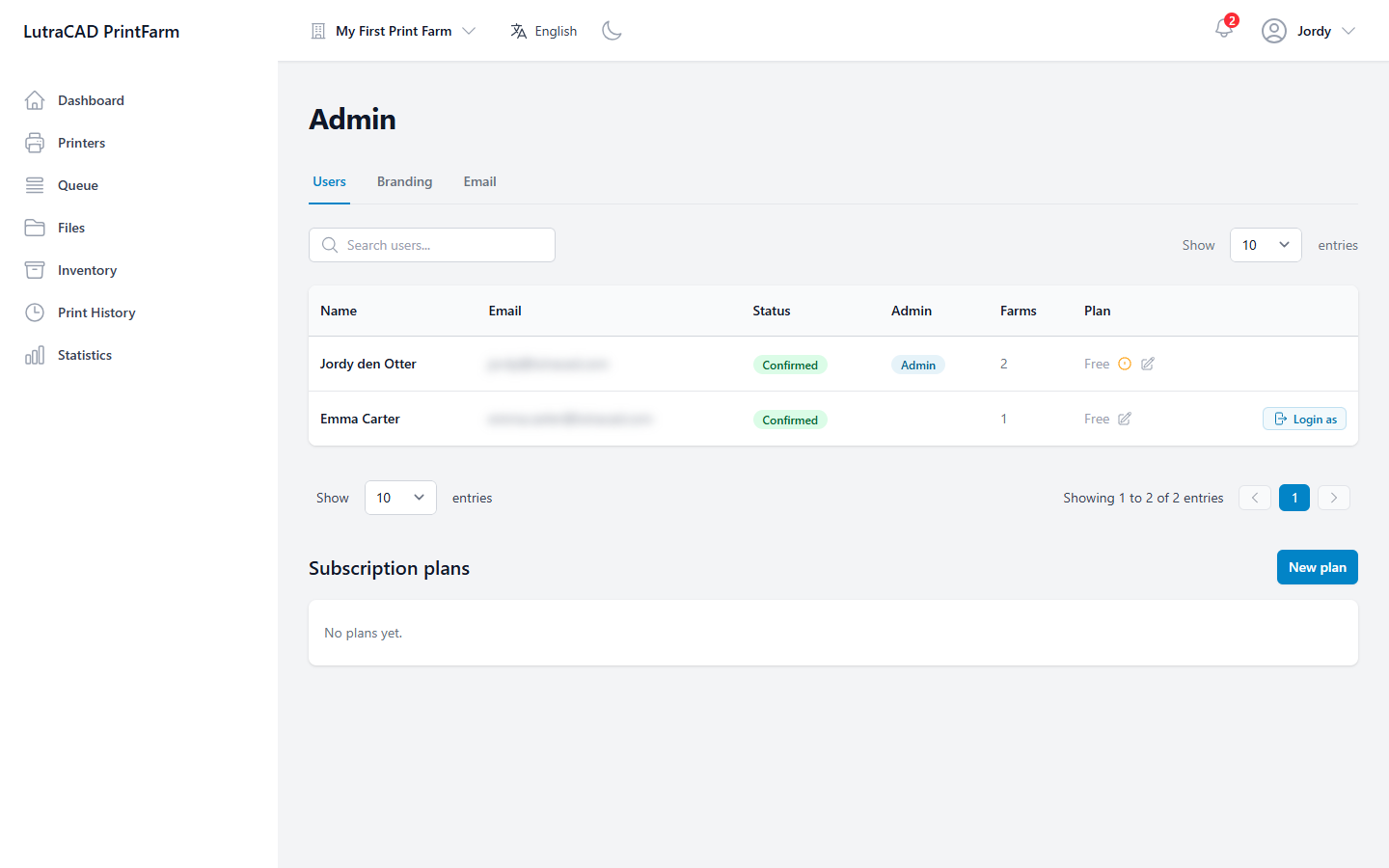
Below the table:
- Subscription plans: create and edit the plans available in your organisation. A plan has a Name, Description and a set of Limits, each with a default.
- The Subscription dialog: set a single user's Plan, an optional Plan expires date, and per-user Overrides for individual limits (Inherit, On or Off).
Branding
The Branding tab controls how the app looks for your organisation:
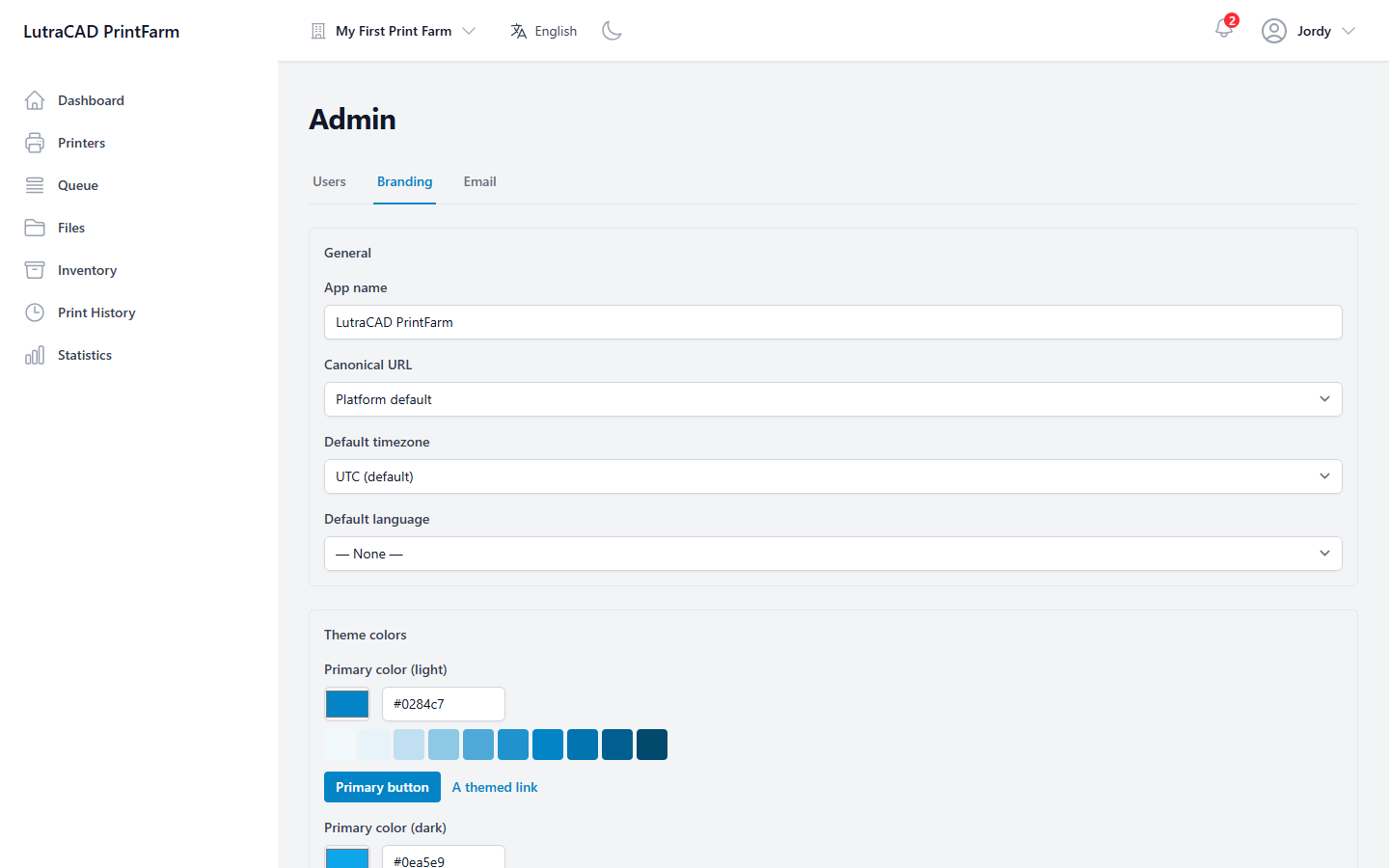
- General: App name, Canonical URL, Default timezone and Default language.
- Theme colors: Primary color (light) and Primary color (dark), with a live preview.
- Assets: upload a Logo and Favicon.
- Domains: add your own domain (for example app.example.com), then publish the shown DNS TXT record and Verify it so the app is served from that domain.
- Email authenticity: publish the shown SPF and DMARC DNS records so your email passes authenticity checks. A sender address must be set first.
Email
The Email tab sets your organisation's mail identity: From name, From address, Reply-to address, Support email, Terms URL and Privacy URL.
When you are signed in as someone else
When you use Login as to sign in as another user, an amber Impersonating banner with an Exit button stays on screen. The Admin menu item is hidden until you exit.