Clients
The main dashboard screen provides an overview of your clients. This section explains the features and functionalities available in the Clients Overview.
Layout Options
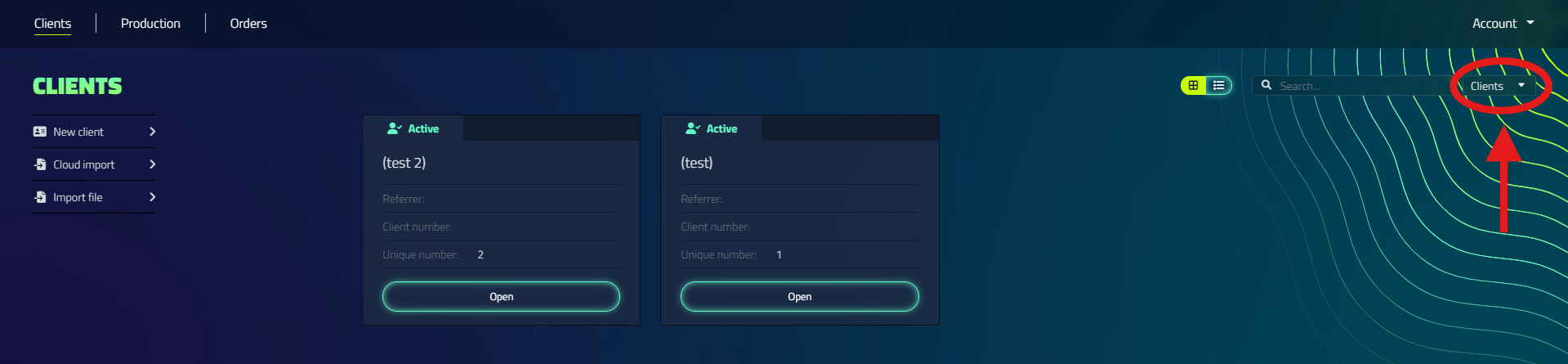
You can customize the view of your clients by switching between two layout options:
- Grid Layout
- List Layout
Choose the layout that best suits your preferences and workflow.

Search Functionality
Use the search feature to quickly locate specific clients or projects.
The search bar allows you to easily find your designs by searching for:
- Clients (first name, last name, date of birth, client number)
- Project titles

Client Management
You can manage your clients through the following actions:
- Adding new clients
- Editing existing client information
- Deleting clients
Client Stages
Clients are assigned different stages based on the production status of their designs:
- Active: When a new design is created for a client
- Archived: When designs are produced and no active action is required from the designer
The client stage automatically updates as the production status changes.
Client View Settings
You can adjust the amount of client information displayed by changing the "Client view" setting in the Settings.
To modify the client view:
- Navigate to the settings
- Locate the "Client view" option in the "Basic" tab
- Choose between:
- Compact: Displays basic information (Name, Date of Birth, Client number, and Notes)
- Extensive: Allows you to enter more detailed client information

Switching between view modes may affect the visibility of certain client details.