Documents
Documents are an integral part of each project, providing essential data and designs for client work. This section covers the types of documents you can add and manage within a project.
Document Types
Documents are always associated with a specific project and can include:
- CAD designs
- Insoles
- Shoe lasts (includes Midsoles and Test Shoes)
- Braces
- Pressure measurements
- 2D scans
- 3D scans
- Photos
- Prescription Forms
Adding Documents
CAD Designs
You can create and add CAD designs for:
- Insoles
- Shoe lasts (includes Midsoles and Test Shoes)
- Braces
Pressure Measurements
To add pressure measurements:
- Navigate to the project
- Go to "Add File" and select "Pressure Measurement"
- Import APD files for pressure plate images
2D Scans
There are two ways to add 2D scans:
-
Import existing 2D scans:
- Go to "Add File" and select "2D scan"
- Click "Import" option
- Select the file from your computer
- Select the region you want to use
-
Direct scanning:
Wide Scanner SupportOur software can control almost all 2D scanners on the market. No need for manual calibration.
- Go to "Add File" and select "2D scan"
- Click "Scan" option
- Select the region you want to use
3D Scans
For 3D scans, you have multiple options:
-
Add 3D scans
- Go to "Add File" and select "3D scan"
- Click "Import" and select your file (Supported formats: STL or OBJ)
- Or direct 3D scanning by using the "Scan" option
Setup ScannerYou can change the scanner by changing the "3D Scanner" setting in the Settings in the "Basic" tab.
-
Cloud import (for iPhone/iPad scans):
Cloud ImportThis feature imports data captured using our iPhone/iPad scanning solution.
- Select "Cloud Import"
- This will import:
- 3D scans
- Photos taken with the device
- Prescription form
Importing from Other Systems
We support importing files from various other systems:
- Navigate to the "Other" section and click "Import"
- Choose the system you're importing from
- Follow the prompts to complete the import
Document Management
Filtering Documents
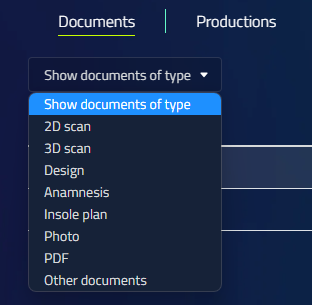
In the project window, you can filter documents by type:
- Look for a filter option or dropdown menu
- Select the document type you want to view
- The display will update to show only the selected document type
Viewing Production Information
To see all production details related to a project:
- Open the project
- Navigate to the "Production" tab
- Here you'll find a comprehensive list of all production activities associated with the project