Orders
Location: Top bar → Orders
The Orders page is primarily designed for Production Labs (Central Fabs) to manage incoming orders from customers. This system accommodates different workflows based on customer preferences and capabilities.
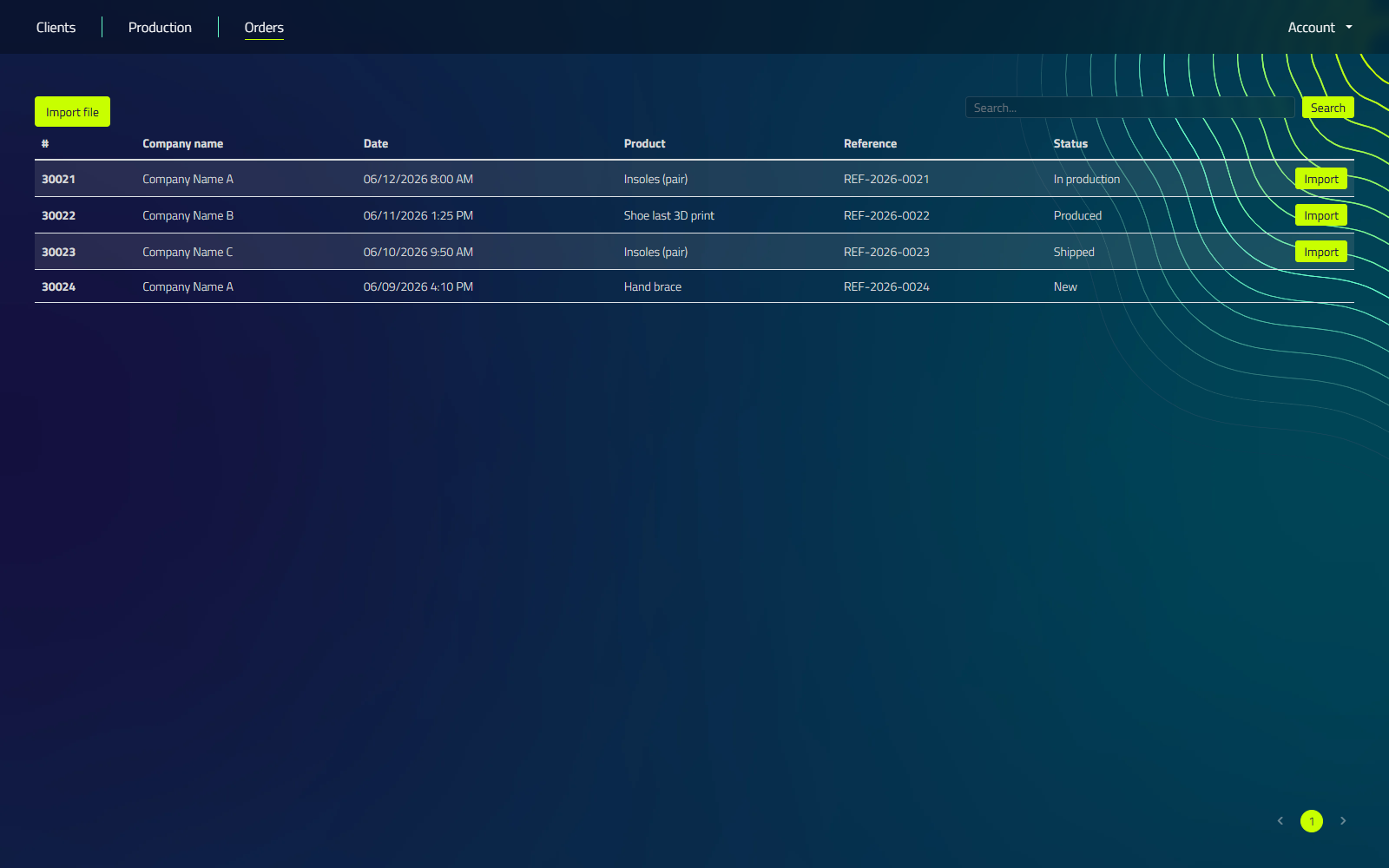
Controls
| Control | What it does |
|---|---|
| Import file button | Opens a file picker to manually import an .l3z order file from disk |
| Search field | Search by client (company name) or reference |
| Search button | Runs the search |
Table columns
| Column | Description |
|---|---|
| # | Order ID |
| Company name | Source company |
| Date | Order date |
| Product | Product type |
| Reference | External reference |
| Status | One of New, In production, Delayed, Produced, Ready for delivery, Shipped, Cancelled |
| Import | Downloads the order file and opens the production in the CAD program, shown only when an .l3z file is attached to the order |
Customer Workflows
Production Labs can handle orders through two main workflows:
- Full Service: Customers scan and fill in a prescription form; the lab handles both design and production.
- Production Only: Customers scan and create the design, then outsource only the production to the lab.
Order Management for Production-Only Workflow
This section focuses on managing orders where customers handle the design and outsource production to the lab.
Creating Orders
Customers using the design software can create orders for production:
- Complete the design in the software
- Click the "Place order" button
- Fill in any required order details
- Submit the order
Importing Orders (For Labs)
Labs can easily import orders created by customers:
- Navigate to the Orders page
- Look for the order file sent by the customer
- Look for the "Import" button in the row
- The system will open the order designed by the customer
When the Lab Management Software is integrated and enabled, importing an order automatically updates the order status from "New" to "In Production" in the Lab Management Software.
Exporting Orders (For Designers without Lab Management Software)
Designers who aren't using the Lab Management Software can still submit orders:
- In the design software, locate the "Save order" option
- Generate an order file with all necessary design and production details
- Send this file to the production lab
Importing Exported Orders (For Labs)
To import orders from designers not using the Lab Management Software:
- On the Orders page, find the "Import file" button
- Select the order file received from the designer
- The system will process the file and add the order to your production queue
Benefits of the Lab Management Software
- Streamlined Workflow: Easily manage incoming orders from various customers
- Flexibility: Accommodate different customer workflows and software setups
- Integration: Seamless connection with Lab Management Software for enhanced tracking
- Efficiency: Quickly import and process orders to minimize production delays
Related Documentation
For more information on managing the entire production process, see Lab Management Software.
The Lab Management Software is a separate system that integrates with this ordering process. It provides additional features for comprehensive lab and order management.