The main window
Once you are signed in, every screen shares the same frame: a sidebar on the left, a top bar across the top, and the current screen in the middle.
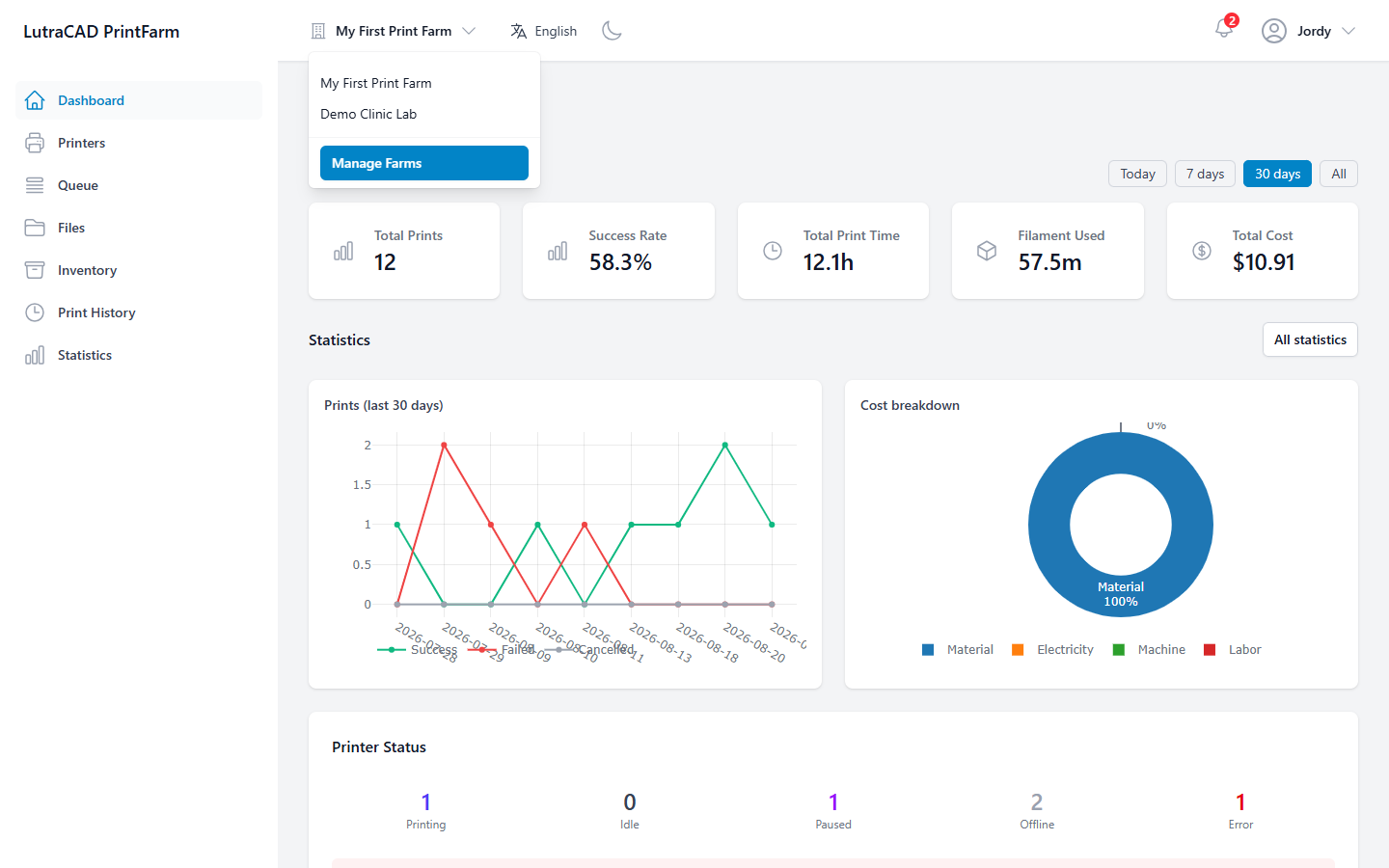
The sidebar
The top of the sidebar shows your farm's logo, or its name if no logo is set. Below it is the main menu:
| Menu item | Opens |
|---|---|
| Dashboard | The overview screen |
| Printers | The printer list |
| Queue | The print queue |
| Files | Your print files |
| Inventory | Filament stock and spool history |
| Print History | Completed prints |
| Statistics | Charts and reports |
On a phone the sidebar is hidden. An Open sidebar button (☰) slides it in.
note
Settings live in the user menu at the top right, and Farm Management opens from the farm switcher. Neither has its own item in the sidebar.
The top bar
From left to right, the top bar holds:
- Farm switcher: a building icon with the current farm's name, or Select Farm if none is chosen. Clicking it lists every farm you belong to; click one to switch. At the bottom, Manage Farms opens Farm Management.
- Change language: switch the interface language.
- Toggle theme: switch between light and dark mode.
- Notifications: a bell that opens the notification list.
- User menu: your name and a person icon, containing Settings, Logout, and, for administrators, Admin.
Everything is scoped to the selected farm
Almost everything on screen belongs to the farm currently chosen in the farm switcher.
tip
If the numbers or the printer list look wrong, check the farm switcher first. You are probably looking at a different farm.