Controllers (Nodes)
Location: Farm Settings → Nodes
The Nodes tab, Farm Nodes, lists the controllers that connect this farm's printers. A controller is a small device, typically a Raspberry Pi, that runs the Print Farm controller software and links your printers to the app.
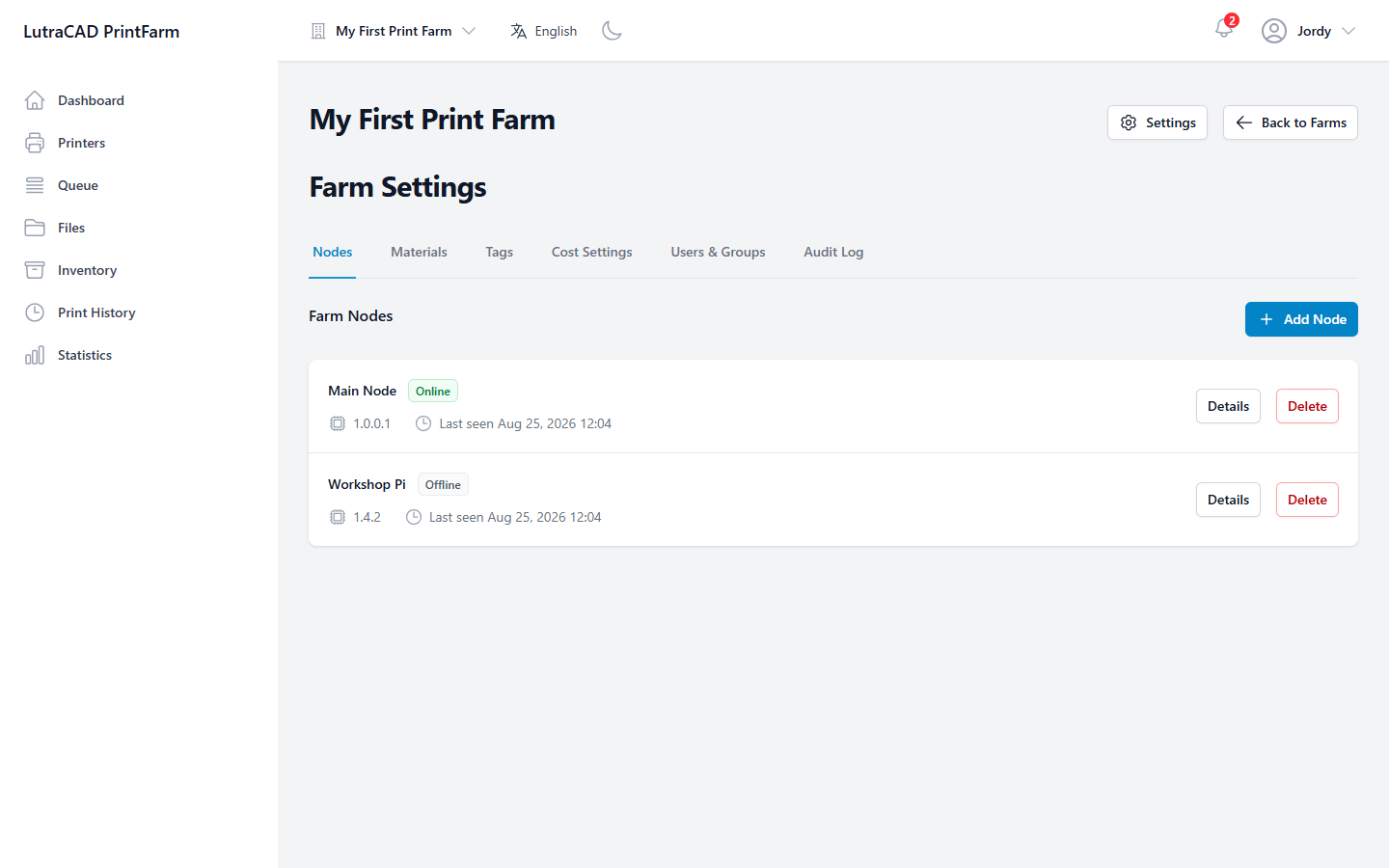
Each controller shows its name, a status (Online, Offline, Standby, Printing and so on), its firmware version and when it was Last seen. Row actions are Details, Update (when an update is available and the node is online) and Delete.
Adding a controller
Add Node opens a wizard:
- Add a New Node: explains that a controller is typically a Raspberry Pi or similar device, and lists the requirements: a Raspberry Pi or compatible device, and network connectivity.
- Node Setup: enter a Node Name, for example "Main Node", and Add node.
- Install the Controller: choose Linux or Windows and copy the one-line install command to run on the device. "The node will appear online automatically once the installation is complete."
Controller details
Details opens Controller Details: live gauges for Load, CPU Usage and Memory Usage when the node is online and reporting, or Node is offline / No stats available yet otherwise.
Here you can edit the Node Name, set an optional Label Printer IP and send a Test print to it, and see the node's Hostname.
Updating and deleting
Update opens the node-update dialog. It confirms the target version, warns if printers are actively printing (the node restarts), shows live progress, and reports success or a rollback to the previous version.
Delete Node asks you to confirm the node by name.
Deleting a node is permanent and cannot be undone.
The node-update dialog is currently shown in Dutch even in the English interface. The update itself works normally; only the wording is untranslated.