Documents
Documents are an integral part of each project, providing essential data and designs for client work. This section covers the types of documents you can add and manage within a project.
Document types
Documents are always associated with a specific project and can include:
- CAD designs
- Insoles
- Shoe lasts (includes Midsoles and Test Shoes)
- Braces
- Pressure measurements
- 2D scans
- 3D scans
- Photos
- Specification form
Adding documents
The project page sidebar has four sections:
| Section | Buttons |
|---|---|
| Add design | Insole design, Shoe last design, Brace (AFO), Brace (Hand splint), Brace (Helmet) |
| Add file | 2D scan, 3D scan, Pressure measurement |
| Other | Specification form, Import file, Cloud import |
| Project | Edit, Transfer, Delete |
After creating a design document, click it in the list, or click Open, to open it.
Import a CAD file
Other → Import file. Select a .cad file. It's added to the project's document list, and a confirmation message appears.
Specification form
Other → Specification form loads the online prescription form from the cloud in a dialog. Submitted data is saved to the project automatically. Requires an internet connection.
The documents table
| Column | Description |
|---|---|
| Type | Document type icon/label |
| Created on | Date and time |
| Created by | Username |
| Actions | Per-document buttons |
Per-document buttons:
| Button | What it does |
|---|---|
| Open | Opens the document in its viewer or in the CAD program. The same button opens PDFs and the specification form in a viewer. |
| Action | A dropdown with more actions for the document, listed below. |
Document actions
The Action dropdown on each document row holds:
| Action | What it does |
|---|---|
| Edit | Names the document. Opens a field with the current name so you can label it, for example a short note to tell two scans of the same foot apart, then click Save. This only changes the name, it does not open the document. |
| Duplicate | Makes a copy of the document in the same project. The copy keeps the same type and name. |
| Delete | Removes the document after a confirmation ("Are you sure you want to delete this document?"). This is permanent. A scan that is already used in a design cannot be deleted: a message says the document is in use, so finish or remove that design first. |
| Add design | Shown only on a specification form. Creates a new insole design that uses the form as its input and opens it straight away in the CAD program. |
Filtering documents
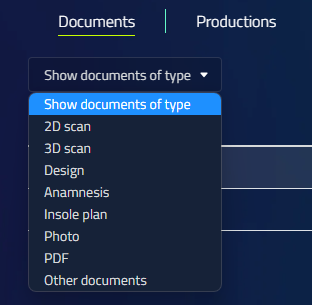
In the project window, you can filter documents by type:
- Open the document type filter at the top of the project window.
- Select the document type you want to view.
- The display updates to show only the selected document type.
Production tab
Location: Project page → Production tab
Shows all productions created from this project.
| Column | Description |
|---|---|
| Production ID | Production number |
| Type | Production type |
| Status | Current status |
| Open | Reopens the production straight at its production step. |
| Delete | Cancel the production (asks for confirmation) |
Use Open on an existing production to jump back to the production step without walking through the whole design again. This is the quick way to produce a finished design again.