Files
Location: Sidebar → Files
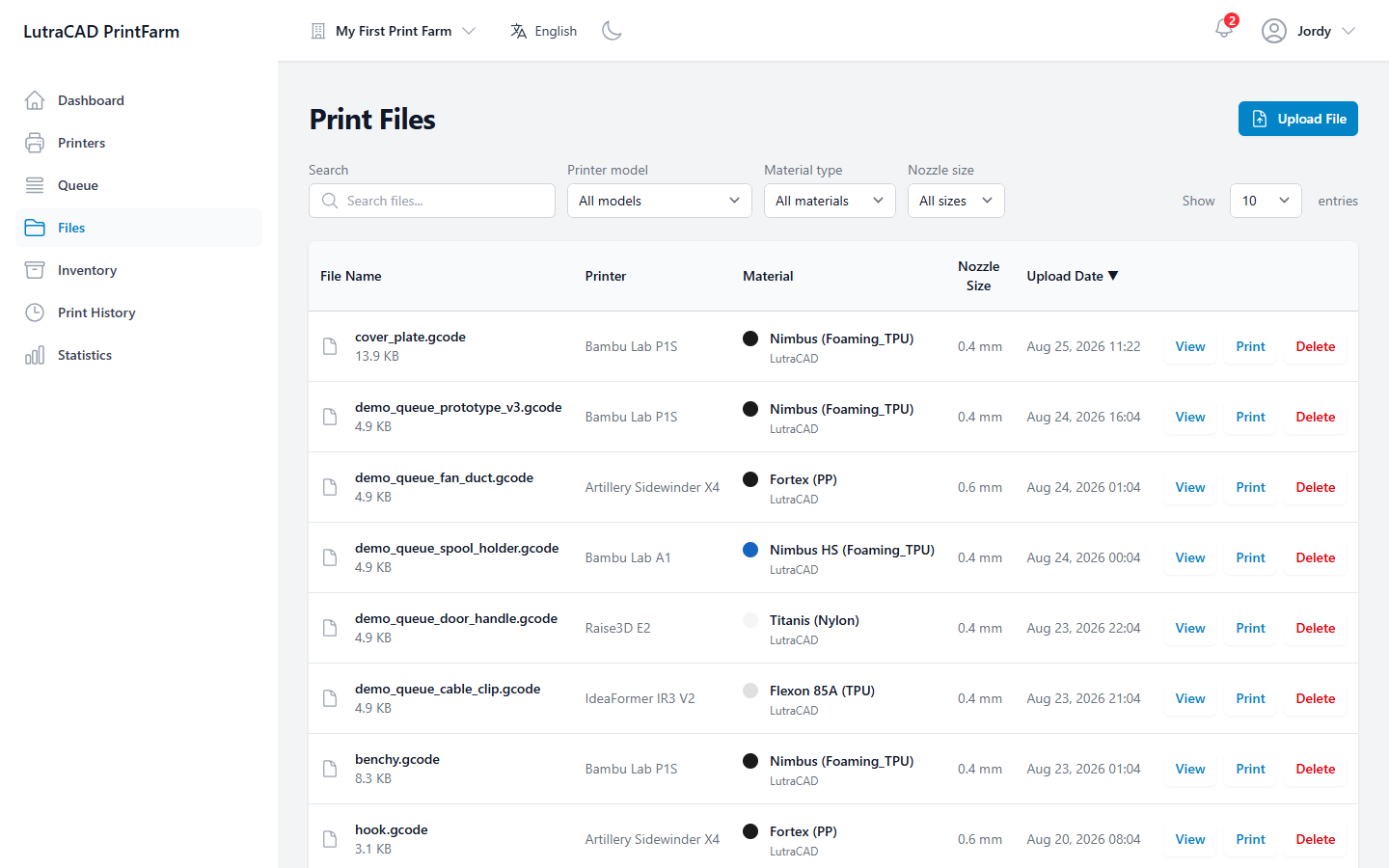
Print Files is the library of print files uploaded to the farm.
Uploading
The Upload File button, shown only to team members who may upload, opens Upload Print File. Drag files in or click Upload a file. Accepted files are GCODE files, or 3MF for Bambu Lab.
For each file you set a Printer Model, Material and Nozzle Size, then choose:
- Upload: add the file to the library.
- Upload & Print: add it and queue it in one step.
If the farm has no printers yet, the dialog shows No printers in this farm: "Add a printer to the farm before uploading files."
Filters and the table
Filter by Search files…, Printer model, Material type and Nozzle size (0.2, 0.4, 0.6 or 0.8 mm). The columns are File Name (with file size), Printer, Material, Nozzle Size, Upload Date and Actions.
Per row:
| Action | Does |
|---|---|
| View | Opens the GCode viewer |
| Queues the file | |
| Delete | Removes the file |
Print and Delete are limited to team members who may manage jobs. Delete File asks you to confirm the file by name.
Deleting a file is permanent. The file is removed for good.
The GCode viewer
View opens a full-screen 3D preview of the file's toolpath. While it loads it shows Loading gcode…; if it cannot load, Failed to load gcode.
The viewer has orientation buttons, Top view, Rotate left 90°, Reset view (home), Rotate right 90° and Bottom view, a Layers slider and a Steps slider, an Only current layer toggle, and readouts for Time, Material, Price, Layer height, Segments, Filament Ø and Bounds.