Printers
Location: Sidebar → Printers
Printers is where you monitor and control the machines. It is the largest area of the app.
The printer list
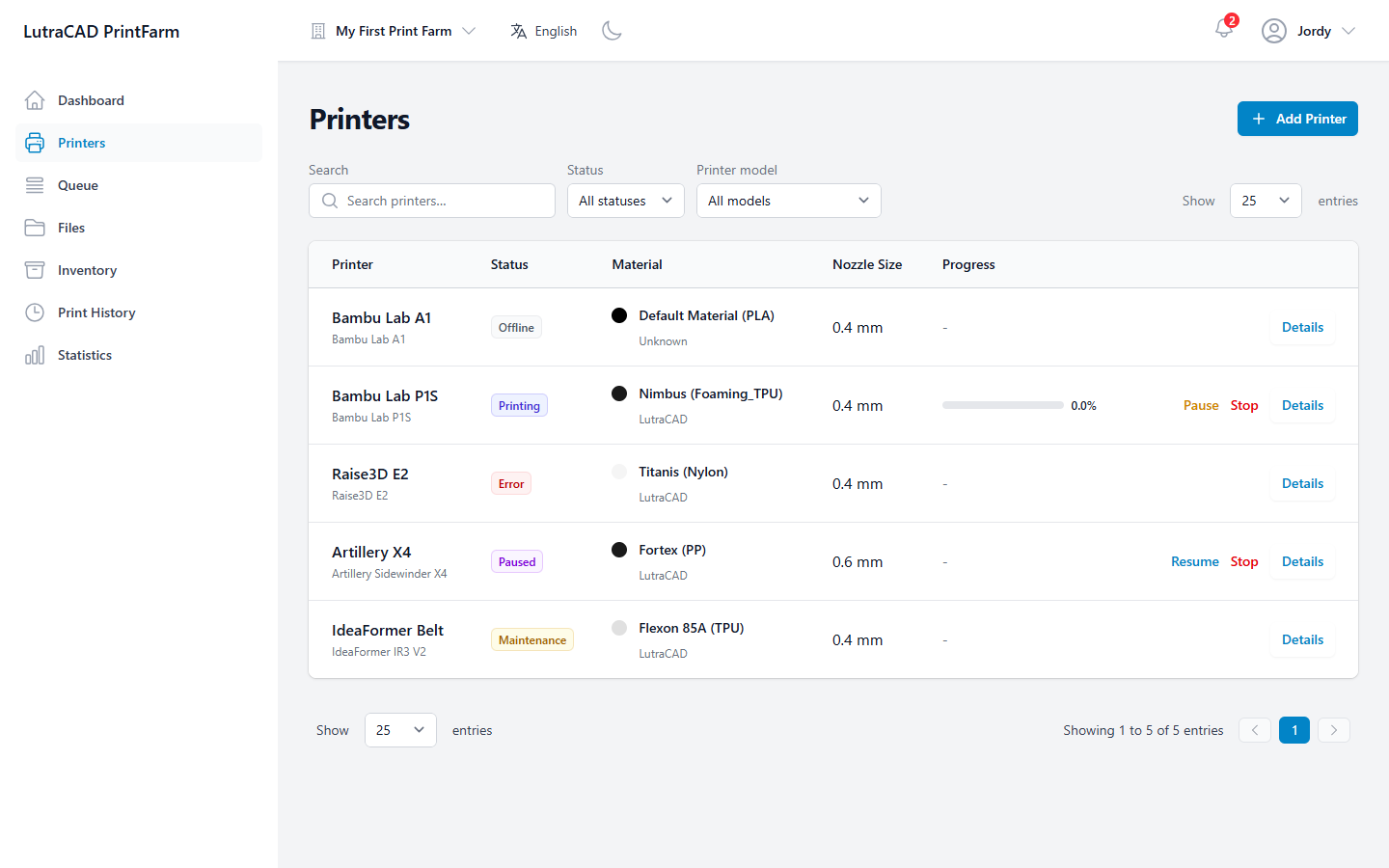
Printers appear as a list, one row per printer. Filter with Search printers…, a status dropdown (All statuses, or Printing, Idle, Paused, Offline, Error) and a Printer model dropdown. Each row shows:
| Column | Shows |
|---|---|
| Printer | Name and model |
| Status | Status badge |
| Material | Loaded material and colour |
| Nozzle Size | Nozzle in mm |
| Progress | File, progress bar and time remaining while printing |
Depending on status, a row offers Start Print, Complete Print, Pause, Resume, Stop, and always Details.
The status badge reads Offline, Online, Standby, Printing, Paused, Complete, Cancelled or Error. A printer in maintenance mode shows Maintenance.
Add Printer (top right) is available to team members who may manage printers. If the farm has reached its printer limit, a Printer limit reached message appears instead.
Adding a printer
Add Printer opens a wizard:
- Add a New Printer: a checklist to have ready: the printer powered on and on the network, its model and IP address to hand, and material for a test print.
- Select Controller: pick which controller the printer connects through. If there are none, Add Controller sends you to add one first.
- Printer Setup: press Scan to find Bambu Lab printers on the controller's network and fill the details automatically, or enter them by hand: Printer Name, Printer Model, IP Address, and for Bambu Lab an Access Code from the printer screen, plus nozzle size and material. Test Connection checks it works.
- Test Home All: after clearing the bed, Start Home All moves all axes home so you can confirm the printer responds.
- Setup Complete! Press Go to Printer Overview to finish.
For a Bambu Lab printer, use Scan in step 3 instead of typing the details. It finds the printer on the controller's network and fills in the model and IP address for you.
Printer details
Opening a printer shows a header with its picture, the model, material and nozzle (all changeable here), its IP Address and Serial Number, and a Live Stream button when camera streaming is enabled. Team members who may manage printers get a ⋮ menu with Rename and Delete.
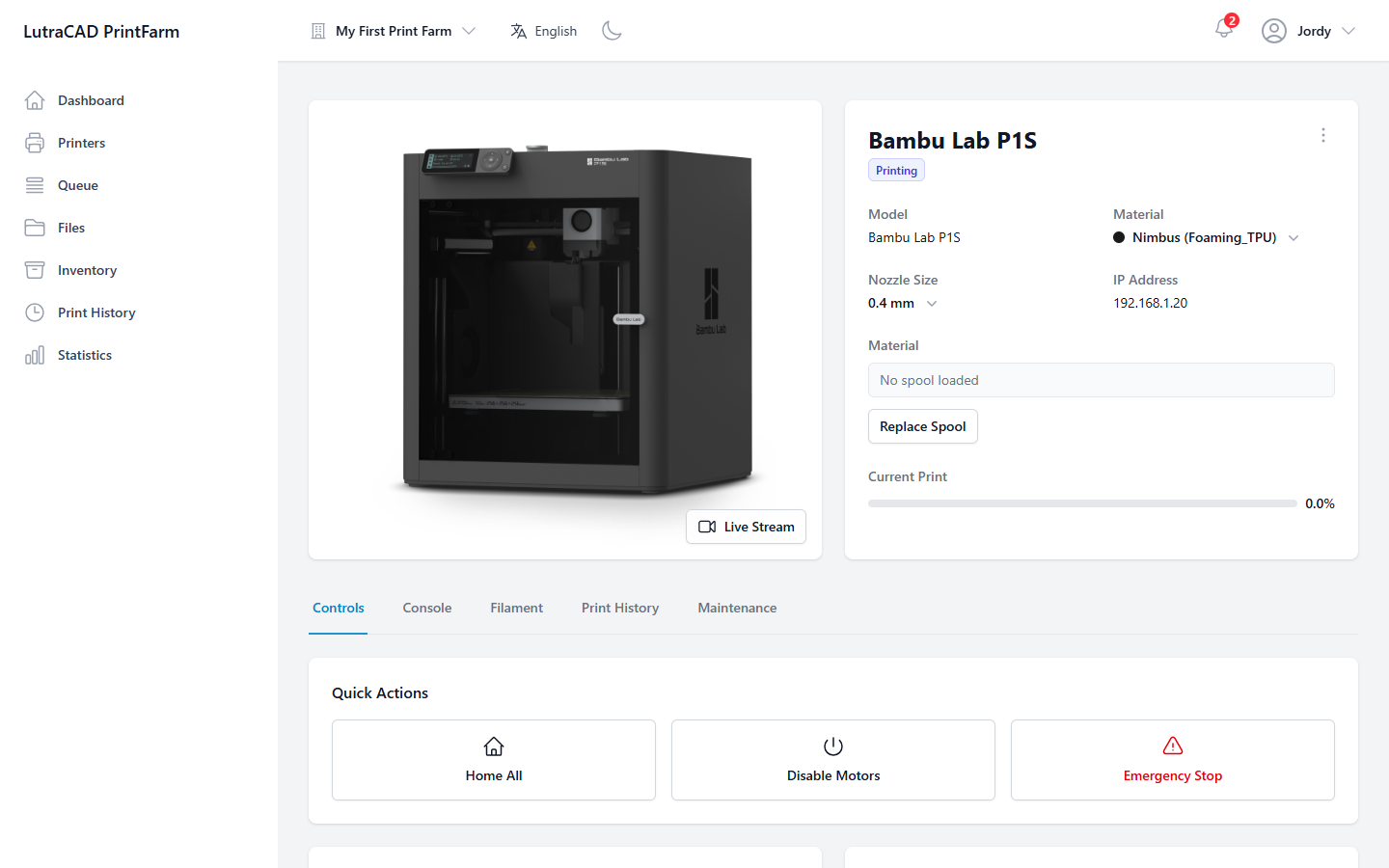
- If the printer is in error, a banner reads "Printer is in an error state." with a Clear Error button.
- While printing, a Current Print panel shows the file, progress and time remaining.
- When filament stock is enabled, a loaded-spool badge and a Replace button appear.
Below the header are tabs:
| Tab | Shows |
|---|---|
| Controls | The live control panel (see below). Manage-printers permission only. |
| Console | A G-code console: type a command and Send, with quick buttons for common commands. Manage-printers permission only. |
| Filament | The spool history for this printer. Needs filament stock enabled. |
| Print History | This printer's completed prints, with a cost breakdown per print. |
| Maintenance | Maintenance mode and log for this printer. |
Delete asks you to confirm the printer by name.
Deleting a printer is permanent. It will be removed and stop reporting, and this cannot be undone.
The Controls tab
The control panel is disabled while the printer is offline. It groups into:
- Quick Actions: Home All, Disable Motors, and Emergency Stop on printers that support it (Bambu Lab, Moonraker and Repetier-Server).
- Temperature Control: set Extruder and Bed temperatures with presets, or Cool Down. PID Tuning is offered on Moonraker printers. Temperatures follow your Celsius or Fahrenheit preference.
- Movement Control: X, Y and Z jog buttons with step sizes, plus Home All, Home XY and Home Z.
- Filament Control: Load, Unload, Extrude and Retract, with a feed amount and speed.
- Fan Control: a part-cooling fan slider with Off, 50% and 100%.
- LED Control: turn the printer light on or off, with a brightness slider except on Bambu Lab.
The Maintenance tab
Team members who may manage maintenance can turn maintenance mode on or off (Enable Maintenance Mode / Disable Maintenance Mode) and Log Maintenance. The log dialog records a Maintenance Task, Date & Time and Notes. Past entries appear as a Maintenance History timeline.
A printer in maintenance mode is left out of automatic job assignment.
Starting and finishing prints
- Start Print on an idle printer opens Start New Print: clear the build plate, confirm, then Print Farm connects and starts the next job. A Print Started screen closes the flow.
- Complete Print on a finished printer first asks for Print Quality Feedback: mark the print a success or pick a failure reason, then clear the plate and, if you want, start the next job.