Inventory: stock and spool history
Location: Sidebar → Inventory
Inventory tracks filament spool by spool. It appears only when your plan includes filament stock; otherwise the app shows an upgrade panel. A Manage Materials link in the header jumps to the farm's Materials settings.
Inventory has two tabs: Stock and Spool History.
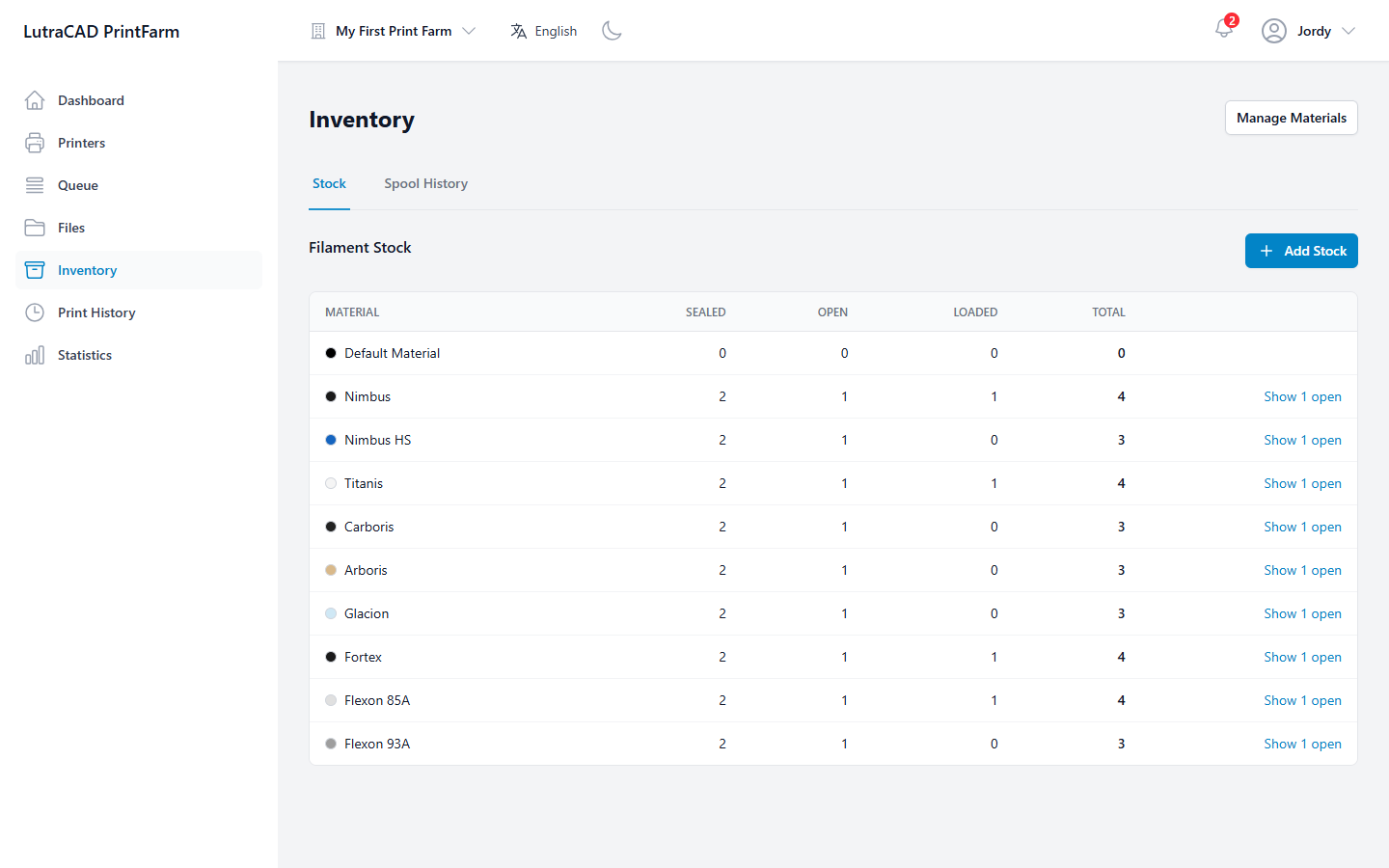
Stock tab
Filament Stock lists spools grouped per material, with counts by state:
| Column | Shows |
|---|---|
| Material | The material |
| Sealed | Unopened spools |
| Open | Opened spools |
| Loaded | Spools currently in a printer |
| Total | All spools of this material |
Where a material has open spools, a Show open link (with the number of open spools) expands a sub-table with Batch, Remaining (g), Remaining (m) and % Left. When there is no stock yet, the tab shows No spools in stock yet.
Add Stock opens a dialog with Material, Quantity, Batch Number, Purchase Date and Cost, confirmed with Add Stock.
Spool History tab
Spool History is the timeline of every spool event. Event types are Added, Loaded, Removed, Discarded, Finished, Usage Recorded and Adjusted.
Filter by event type, printer, material and date range, and clear the filters with Reset. The columns are Date, Event, Material, Batch, the spool number, Printer, Weight Δ (the grams added or used), Cost and Reason / Note. When there is nothing yet, the tab shows No spool events yet.
Replacing a spool
Spools are replaced from the printer screen, using the Replace button on the printer's header. The Replace Spool and Switch Material dialogs let you:
- Put the old spool back in stock, or discard it with a reason such as Defective, Tangled, Moisture or Ran Out.
- Load a sealed or an open spool in its place.